
Introduction
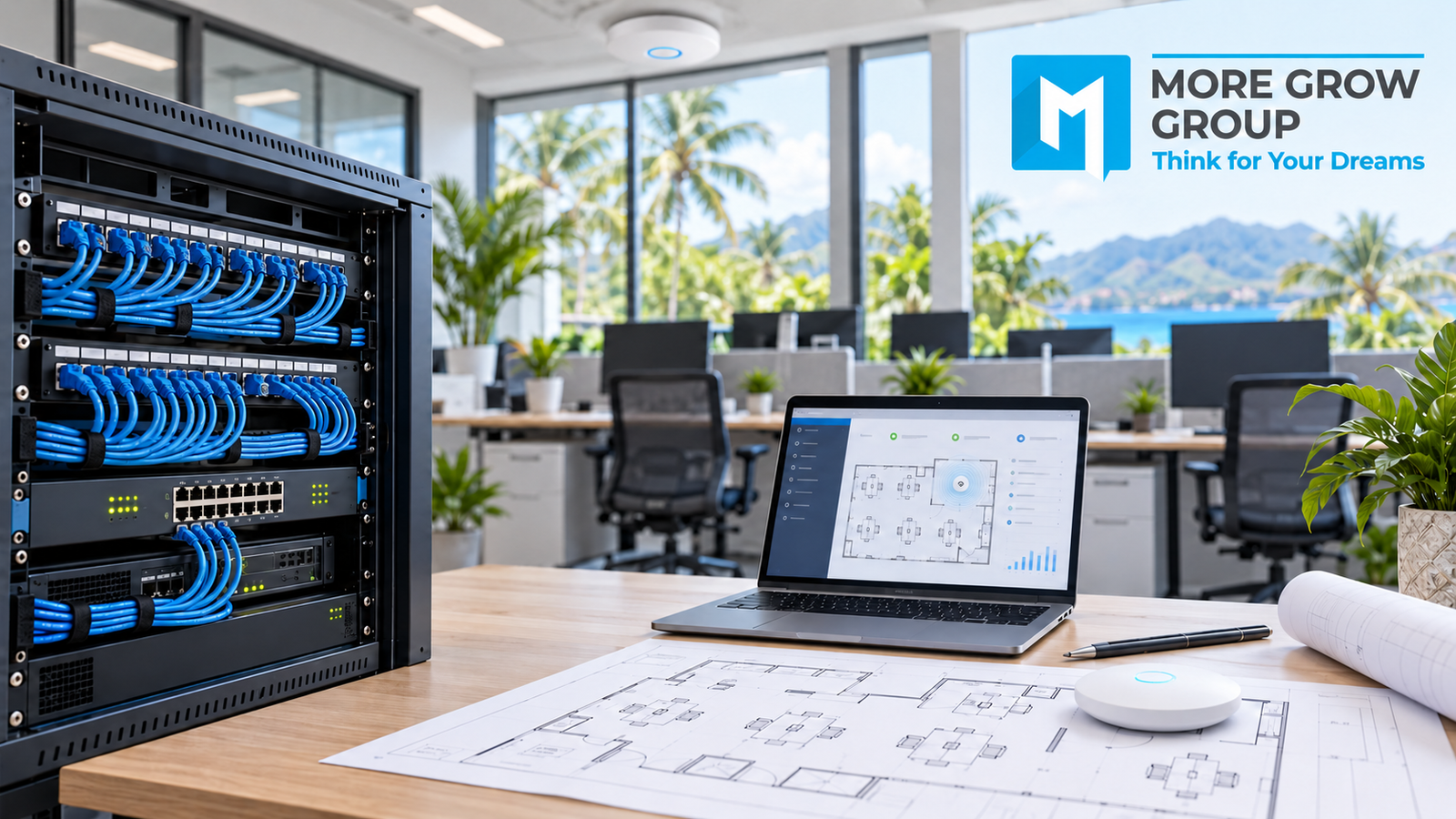
Information technology services in Fiji can help businesses plan office networks around their current operations and expected growth.
An office with a few computers may initially manage with a basic router and wireless connection. As the business adds employees, cloud applications, printers, video meetings and other connected devices, that setup may become harder to manage.
Network planning involves more than selecting a faster internet package. Businesses also need suitable cabling, wireless coverage, security controls, power protection and ongoing support.
For a growing business in Fiji, a practical approach starts with understanding how employees work and identifying which systems need dependable connectivity.
1. What Should an Office Network Support?
An office network connects devices and allows them to access authorised resources, such as internet services, shared files and printers.
The design should reflect the activities your business performs.
These may include:
- Email and cloud applications.
- Accounting and business-management software.
- Video meetings and internet-based telephone calls.
- Shared documents and local servers.
- Network printers.
- Point-of-sale systems.
- Security cameras and access-control equipment.
- Guest internet access.
Not every device should have access to every resource. The network should support necessary connections while restricting unnecessary access.
2. Start With Employees, Devices and Applications
Before purchasing equipment, prepare an inventory of the devices that will connect to the network.
Include:
- Desktop computers and laptops.
- Business mobile phones and tablets.
- Printers and scanners.
- Servers or network storage.
- Wireless access points.
- Internet-based desk phones.
- Cameras and recording systems.
- Other connected equipment.
Count devices rather than employees alone. One employee may use a laptop, phone and desk telephone.
Also identify the applications that matter most. A business regularly uploading large files has different requirements from an office mainly using email and browser-based software.
Record current needs and realistic growth expectations.
3. Assess the Office Layout Before Installing Equipment
Network performance depends partly on the physical environment.
Review:
- Office size and floor plan.
- Number of floors.
- Desk and meeting-room locations.
- Wall materials.
- Available cable routes.
- Existing network outlets.
- Equipment storage and ventilation.
- Areas needing wireless coverage.
A router placed in a cupboard at one end of the building may not provide suitable coverage throughout the office.
For businesses in Fiji, assess conditions at the actual premises. Connectivity options, power arrangements and access to technical support can differ between locations.
A site assessment helps identify these requirements before installation.
4. Choose Internet Connectivity Around Business Use
Internet speed should be assessed alongside reliability, upload capacity and application requirements.
Questions to ask a provider include:
- Which services are available at the premises?
- What download and upload speeds are offered?
- Are there data limits or usage restrictions?
- What support arrangements apply?
- Is a suitable service-level agreement available?
- Are there requirements for a public or static IP address?
- What equipment is included?
Upload capacity matters for video calls, cloud backups and sending large files.
Latency, packet loss and connection stability can also affect applications. A high advertised download speed does not resolve every performance problem.
Assess how many employees will use demanding applications at the same time.
5. Use Wired Connections Where They Add Value
Wired connections can provide predictable connectivity for fixed devices.
They may be appropriate for:
- Desktop workstations.
- Servers and shared storage.
- Network printers.
- Wireless access points.
- Desk phones.
- Cameras, where supported.
Cabling should be selected and installed for the required performance, distances and building conditions.
Ask the installer to label outlets and patch-panel connections, test the installed links and provide the results.
Planning cable routes during an office fit-out can make future expansion easier.
Wireless access remains useful for mobile devices, but it should form part of the overall design.
6. Plan Wi-Fi Coverage and Capacity Together
Wi-Fi planning should consider both where a signal reaches and how many devices need to use it.
An access point is a device that provides wireless connectivity to the network. A larger or more demanding office may need several appropriately positioned access points.
Consider:
- Concurrent device numbers.
- Meeting-room demand.
- Walls and other obstacles.
- Neighbouring wireless networks.
- Device compatibility.
- Available frequency bands.
- Wired connections to access points.
More access points do not automatically mean better performance. Poor placement or configuration can create interference.
Check coverage and performance in the areas where people actually work.
7. Select Network Equipment With Room to Grow
An office network may include a router, firewall, switches and wireless access points.
These components serve different purposes, although some products combine several functions.
Router: Connects networks and directs traffic between them.
Firewall: Applies rules controlling permitted network traffic.
Switch: Connects wired devices within the local network.
Wireless access point: Connects wireless devices to the network.
Selection should consider more than the number of available ports.
Review:
- Required throughput with security features enabled.
- Spare ports for expected additions.
- Management capabilities.
- Software support and updates.
- Warranty and replacement arrangements.
- Power over Ethernet requirements.
Power over Ethernet, or PoE, allows compatible equipment to receive power through network cabling. Confirm both the required PoE standard and the switch’s total power budget.
8. Separate Staff, Guest and Other Device Access
Visitors generally need internet access without access to business files, printers or administrative systems.
Other equipment, such as cameras or connected building devices, may also benefit from separate network access.
Network segmentation divides a network into controlled sections. Firewall or other access rules determine which connections are permitted between them.
CISA guidance recommends segmentation as part of network protection and restricting unnecessary movement between systems. CISA
A practical design might separate:
- Staff devices.
- Guest devices.
- Servers.
- Cameras and other connected equipment.
- Network administration.
Simply creating different Wi-Fi names does not establish effective isolation. The underlying configuration and access rules need to be checked.
9. Build Security Into the Initial Setup
Security should be included when the network is installed.
Important measures include:
- Replacing default administrator credentials.
- Using strong, unique passwords.
- Enabling multifactor authentication for administration where supported.
- Selecting supported wireless security settings.
- Restricting access to management interfaces.
- Disabling unnecessary services.
- Keeping equipment software updated.
- Using secure remote-access arrangements.
- Protecting employee devices.
Staff accounts should receive access appropriate to their roles.
Network security also depends on account management, employee practices and maintained computers. A firewall alone cannot address every threat.
10. Plan for Internet and Power Interruptions
Identify which activities would stop if internet connectivity or electricity became unavailable.
A backup internet connection may help maintain selected services, but its usefulness depends on coverage, capacity and how failover is configured.
Ask:
- Does the backup use a different provider or connection path?
- Could the primary and backup services share a point of failure?
- Which applications must continue operating?
- Will calls or sessions disconnect during failover?
- How will the business know the backup is active?
A second connection does not guarantee uninterrupted operation.
For power protection, assess whether an uninterruptible power supply, or UPS, should support the modem or optical terminal, router, firewall, switches and other essential equipment.
UPS runtime depends on the load and battery condition. Confirm the required operating time and test the arrangement.
11. Keep Data Backup Separate From Network Availability
A functioning network does not protect files from deletion, ransomware or equipment failure.
Businesses need a separate backup and recovery plan.
Define:
- Which information must be backed up.
- How often backups run.
- Where copies are stored.
- Who can access or delete them.
- How recovery will be tested.
- How much data loss and downtime the business can tolerate.
File synchronisation is not automatically a complete backup solution. Deletions or unwanted changes may synchronise too.
CISA’s ransomware guidance includes maintaining protected backups and preserving network documentation to support recovery. CISA
12. Document the Network Before Handover
Documentation helps staff and support providers understand the installation.
Useful records include:
- A network diagram.
- Equipment models and serial numbers.
- Cable and outlet labels.
- Internet-provider details.
- Network addressing information.
- Wireless network settings.
- Access rules.
- Software and licence details.
- Configuration backups.
- Warranty information.
- Support contacts.
Store administrative credentials securely rather than including passwords in widely shared documents.
The business should retain appropriate ownership and access to its equipment, subscriptions and management accounts.
Office Network Components: A Planning Comparison
| Component | Main Purpose | Key Planning Consideration |
| Internet service | Connects the office to external services | Availability, upload capacity and support |
| Router and firewall | Route traffic and control access | Performance, security and management |
| Network switches | Connect wired equipment | Ports, uplinks and PoE capacity |
| Wireless access points | Connect mobile devices | Placement, interference and concurrent use |
| Structured cabling | Provides physical network links | Installation quality and testing |
| UPS | Supports selected equipment during power loss | Load, runtime and battery maintenance |
| Monitoring tools | Help identify faults and performance issues | Alerts, responsibility and response |
| Documentation | Supports maintenance and troubleshooting | Accuracy, secure storage and updates |
Each component should be selected as part of a coordinated design.
What Should Businesses Check Before Approving a Proposal?
A network proposal should explain what is included and how it addresses business requirements.
Check:
- Equipment models and quantities.
- Cabling and installation scope.
- Wireless coverage assumptions.
- Security configuration.
- Guest-access arrangements.
- Internet and power contingencies.
- Testing and acceptance criteria.
- Documentation and staff handover.
- Subscription and licence charges.
- Warranty and ongoing support.
- Expansion options.
- Exclusions and dependencies.
Ask whether quoted performance assumes particular conditions.
A lower installation price may exclude configuration, testing or support that the business still needs.
How Should a New Office Network Be Introduced?
Plan installation around business operations.
A practical process includes:
- Confirm requirements and the design.
- Record existing settings and dependencies.
- Schedule cabling and equipment installation.
- Configure access and security controls.
- Test representative business applications.
- Check wired and wireless performance.
- Verify guest isolation.
- Test backup connectivity where included.
- Confirm documentation and administrative access.
- Complete staff handover and support arrangements.
For an existing office, agree on an outage window and rollback plan.
Acceptance testing should reflect real tasks, such as accessing business software, printing, making video calls and transferring files.
How Can MoreGrow Group Support a Network Enquiry?
MoreGrow Group’s Information Technology division describes IT services for business operations, including remote and on-site support.
When discussing an office network, provide:
- Business location and floor plan.
- Current and expected employee numbers.
- Device inventory.
- Important applications.
- Existing internet services.
- Current performance problems.
- Guest-access needs.
- Power and continuity requirements.
- Budget and installation timeframe.
- Support expectations.
Ask MoreGrow Group to confirm the assessment, installation, equipment and ongoing support included in its proposal.
Service coverage, availability and response arrangements should be confirmed for your location.
Building an Office Network That Supports Business Growth
A useful office network connects business requirements with suitable equipment, reliable installation and clear support responsibilities.
For growing businesses in Fiji, planning should cover connectivity, wireless capacity, security, power protection and future additions.
Information technology services in Fiji can support that process by assessing the premises and designing around how the business works. Reviewing the network as operations change helps keep it suitable over time.









Leave A Comment